
How Do Matches Work?
What’s Actually Happening At Your Bank
When you move money between accounts, your bank doesn’t see it as one action.
It records two separate transactions:
- Money leaving one account
- Money arriving in another account
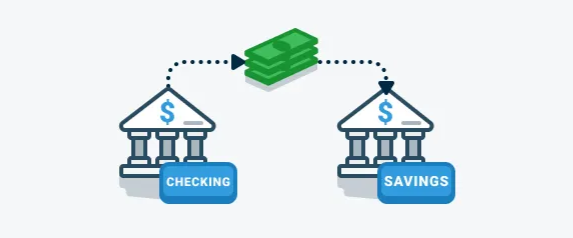
Even though it’s the same money, your bank shows both transactions.
Your money hasn’t increased or decreased. It has just moved between accounts.
Without Match, Roo thinks:
- Money leaving = spending
- Money arriving = income
That would be incorrect.
Example:
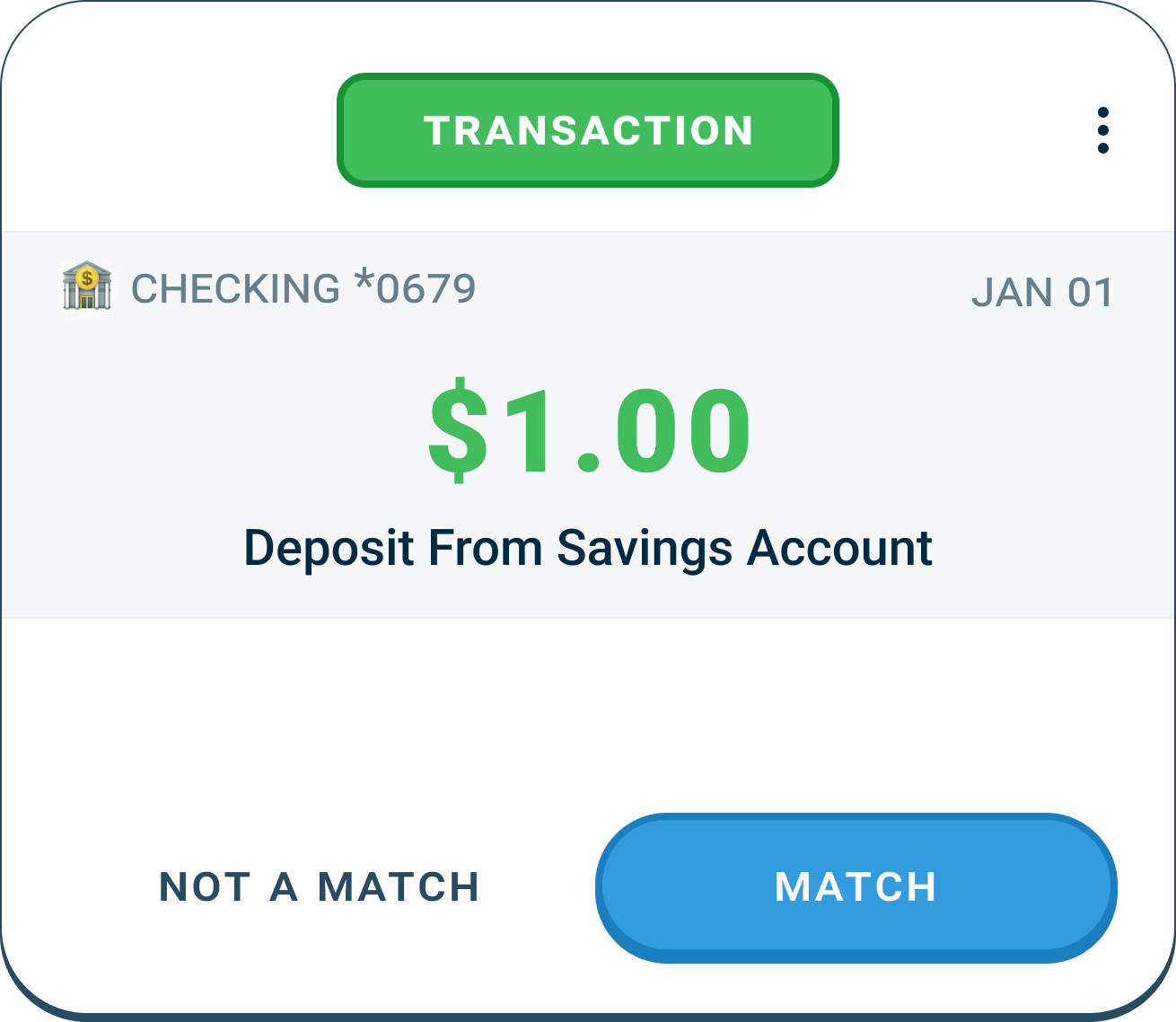
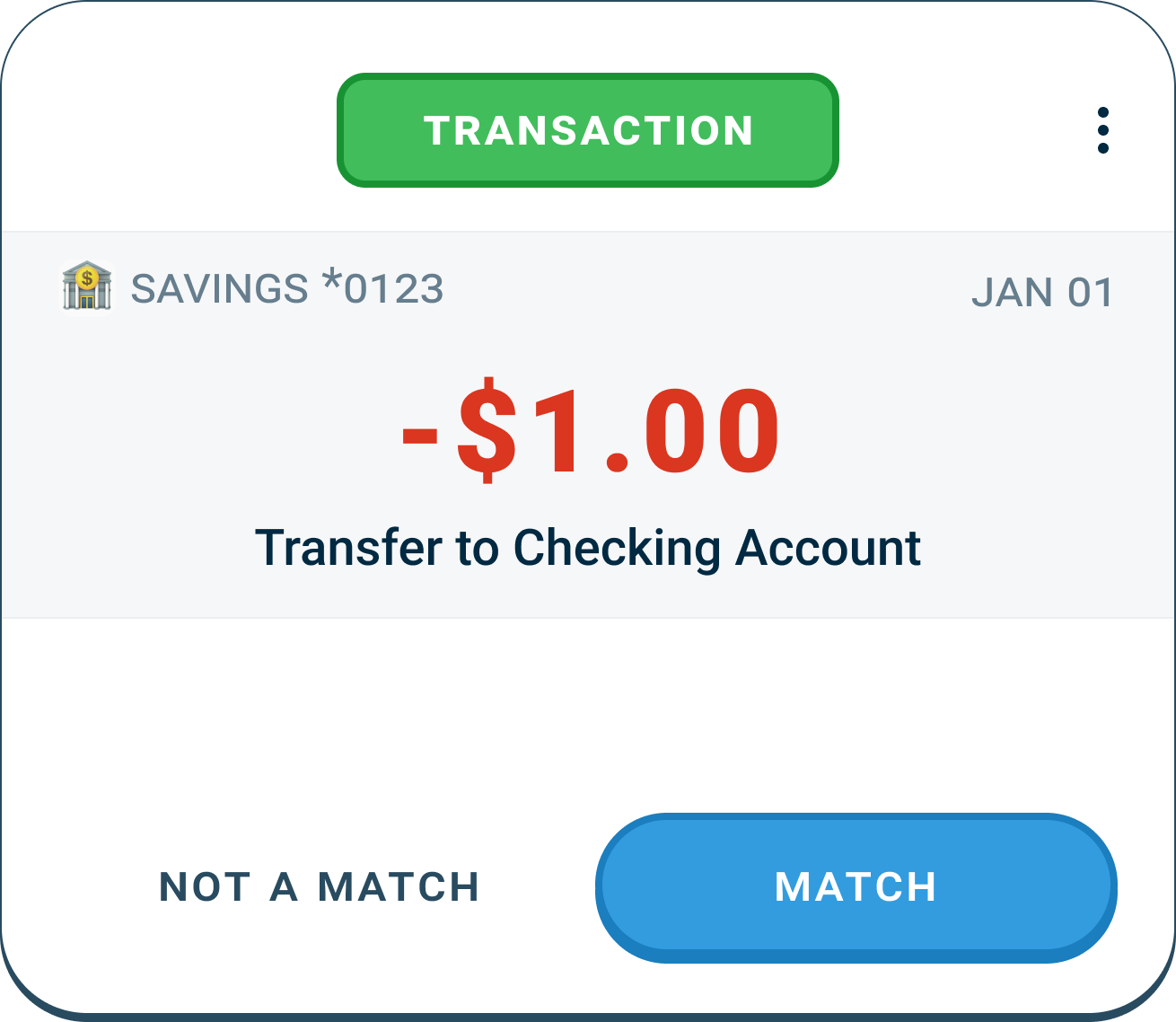
Let’s say you have $1 in Checking and $1 in Savings (Both accounts are On Budget, meaning they contribute to your pouches.)
Together, that’s $2 total.
Now you move $1 from Savings to Checking.
Did you gain or lose money?
No. You still have $2. The money just moved.

This creates two transaction cards in Roo.
Checking Account Transaction
Savings Account Transaction
How To Match Transactions
Arriving At Different Times
Matching transactions often do not come in at the same time.
Roo may see a transaction that looks like it might be part of a match, but the other side hasn’t arrived yet.
This is normal.
Step 1: Send It To The Match Pile
If a transaction looks like it could be a match, swipe it to the Matches pile. It will live in the Matches pile while you wait for the other side to arrive.
Nothing is finalized yet.

Step 2: Match The Other Side When It Arrives
When the matching transaction comes in later, click Match on that card or drag it to the Matches section of the screen.
Step 3: Confirm The Match
Once both sides are in Matches, Roo will open a confirmation screen.
If the transactions belong together, click Yes, Match.
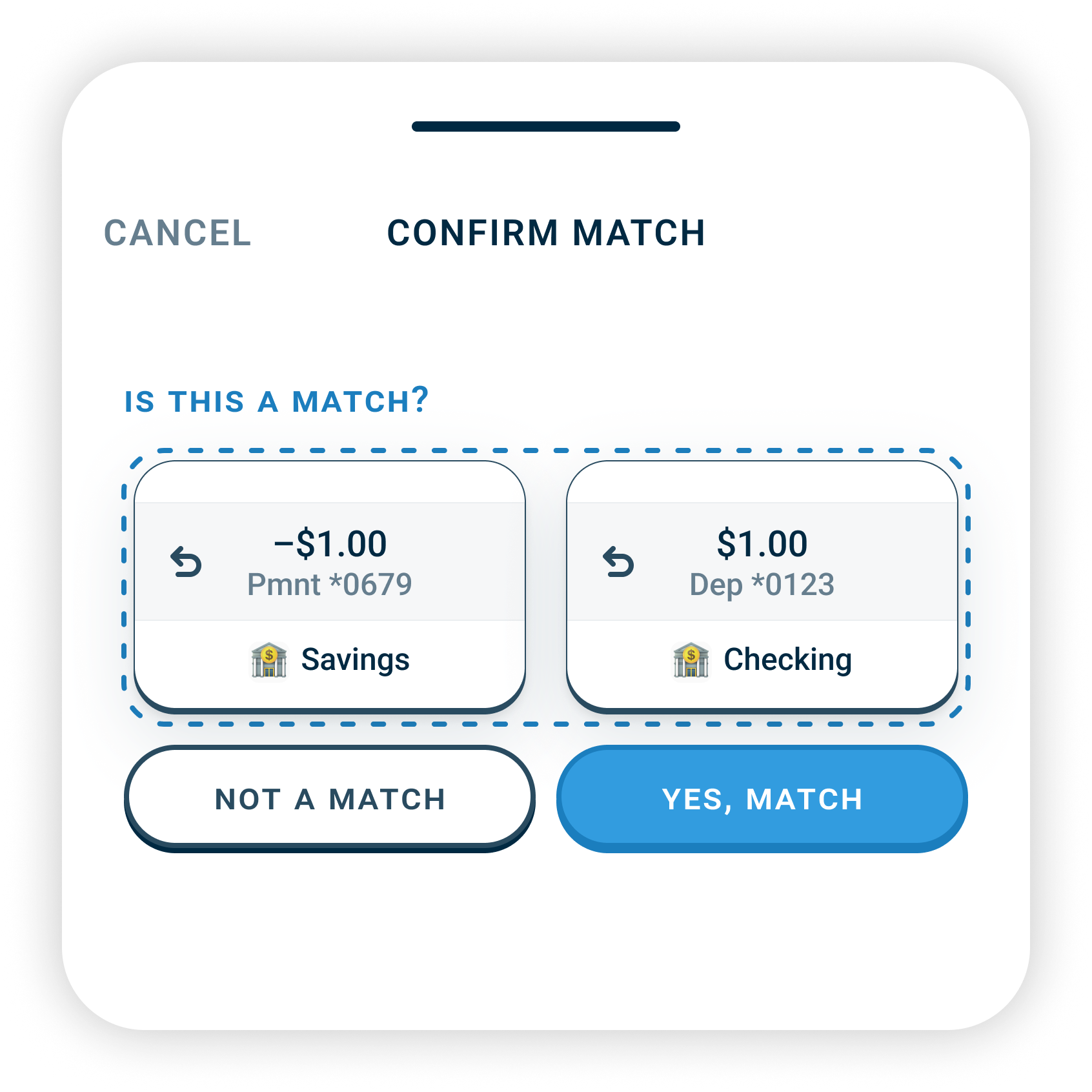
Once confirmed, Roo knows the money just moved between accounts.
The Most Common Example: Credit Card Payments

If your credit card is part of your budget:
- The spending happens when you make the purchase
- Paying the card later does NOT create new spending
- The payment is simply moving money from checking to cover the balance you already spent
That payment is a transfer, not new spending.
Match connects the payment so:
- Spending totals stay accurate
- Your pacing and Daily Cash stay correct
FAQs
What if it's not actually a match?
Sometimes Roo may think a transaction should have a matching transaction when you know it will not.
If that happens:
- Tap Not a Match on the transaction card
- The transaction will return to a regular card
- Swipe it to the appropriate pouch
Nothing breaks, and nothing is lost.
See also: How Do Matches Work?
Where is the other half of my match?
Matching transactions do not always arrive at the same time. It is normal for one side to appear before the other.
If the matching transaction has not shown up yet, it usually means your bank has not sent it to Roo yet.
See also: Missing Matches
How do I find a transaction?
You can find any transaction in Roo.
- Open the Overview tab.
- Scroll to the bottom and tap Search Transactions.
- On the Transaction History screen, search by name, word, or amount.
- Use Advanced Filters to search by pouch, account, bill, type, and more.
You can still find transactions after they are matched, reprocessed, or moved.
See also: Finding Transactions
What if I'm transferring to or from an off-budget account?
Match only applies when both sides of the transfer are On Budget accounts.
Transfers involving Off Budget accounts are handled differently and should not be matched.
See also: Account Types In Roo
Common Mistakes
❌ Swiping a Credit Card Payment to Bills
It’s common to swipe a credit card payment to Bills, but if the credit card is in your budget, that payment is not a bill — it’s a transfer.
❌ Matching a Credit Card Payment for a Card That Is Off Budget
Match should only be used when both sides of the transaction are in your budget — an Off Budget card has no transactions in Roo to match against.